Augment your AI
There are a number of ways to augment AI to work the way that you want. I have been playing with three of them and seeing what the best way to use them is. Note: All of these work in Claude Code but maybe not in the console or on the website. But then again, I don’t use a lot of other tools at the moment, even for my notes. 1
Commands
Commands are kind of like macros. They are basically a saved prompt that can take arguments and show up, at least in Claude Code, as slash commands. When you type a slash, you’ll get a bunch of built in slash commands that pop up, but you can also make your own.
You can do this by creating a .claude/commands folder in either your home directory (for global slash commands) or in the folder where you run claude. You then can define new commands by creating .md files in this folder.
For example, I have one in my personal notes that’s named save-daily-journal.md that contains:
---
description: Save text to today's daily journal entry
allowed-tools: Bash(echo:*, wc -w:*), Write
argument-hint: [minutes] [text]
---

Save this content as today's daily journal note. Use $1 as the minutes or ask the user how many minutes it took to write and save it as a standard daily note with relevant metadata. Word count the text and save that in the appropriate metadata. If there are triple blank lines in the pasted text, format them to one blank line:
Everything under the --- metadata section is the prompt that will be used when you call /save-daily-journal. For the metadata, I defined description, which is used for the user to know what the command does, allowed-tools which allows this command to run these tools without asking for permission first, and arugment-hint which does two things; 1. gives the user an idea of how to use the command, and 2. lets Claude use arguments in the prompt macro. You’ll see there is a $1 in the prompt, that means use the first argument [minutes] in that spot in the prompt. You can also use $ARGUMENTS to use all of them. But I didn’t specify anything with [text] because Claude will also know that everything other than the first argument can just be used as part of the prompt.
These are really useful for little prompts that you run routinely. I have more information about daily journal entries in my CLAUDE.md, but this is all specific to importing text from another website I use and I don’t want to clog up context with the information for this specific process.
Subagents
Defining subagents is more about creating a specific persona for performing certain kinds of tasks during a prompt. Common subagents would be things like code reviewers or line editors.
You can save subagents in the .claude/agents folder and these are also just .md files that define what that agent can do and a prompt that primes it. Instead of calling it directly though, Claude Code will look for places to use the agent as it works.
For example, here’s what a line editor subagent for a marketing team might look like in .claude/agents/line-editor.md:
---
name: line-editor
description: Edits marketing copy for clarity, tone, and brand voice
when-to-use: After drafting or revising marketing content
tools: [Read, Edit]
---

You are a skilled line editor specializing in marketing content. Your goal is to refine copy while preserving the author's voice and intent.

When editing marketing materials:
1. Tighten verbose sentences and eliminate redundancy
2. Ensure consistent brand voice and tone
3. Check for clear calls-to-action
4. Verify claims are specific and credible
5. Polish for readability and flow
6. Flag jargon or unclear terms for general audiences

Make direct edits to improve clarity and impact. Explain significant changes that alter meaning or strategy.
The frontmatter section (between ---) defines metadata like the agent’s name, a description for the user, a hint to Claude on when it should use it, and what tools it has access to. The content below is the system prompt that defines the agent’s behavior and persona.
You don’t need to specify these agent to have them be used, but you still can. You can say “Use the line-editor subagent to review this document”. Claude Code will also use this subagent if the when-to-use is clearly defined and Claude sees that something it’s trying to do fits with the subagent’s definition.
Skills
Skills is about building a little knowledge base that an AI can pull into its context if it finds itself working in an area of the skill. For our marketing centered example above, this could be something like Style Guidelines. These guidelines could be very large and loading them into Claude for every prompt would overload the context of the AI for no reason. But creating a Skill for this will allow the AI to select when and what it loads into context for the current tasks.
Skills are not single files, but folders that contain many files that the AI can selectively use, including markdown files, code files and even scripts that the AI can run to perform a task.
These are structured as folders, something like .claude/skills/recurrent-style-guide. The main file is SKILL.md that will give a brief explanation to Claude about what the skill is and where to find more information.
For example, here’s what the main SKILL.md file might look like in .claude/skills/recurrent-style-guide/SKILL.md:
---
name: style-guide
description: Brand guidelines and style standards. Use when formatting images or text for posting to the website or social media accounts like Facebook, Instagram, or TikTok.
---

# Recurrent Style Guide

This skill contains comprehensive brand and style guidelines. Use these resources when creating or reviewing any branded materials.

## What's Included

- **Brand Colors** (`colors.md`) - Official color palette with hex codes, usage guidelines, and accessibility requirements
- **Logo Guidelines** (`logo-usage.md`) - Logo variations, spacing rules, and prohibited uses
- **Website Style** (`web-guidelines.md`) - Typography, layout patterns, and UI component standards for web properties
- **Social Media** (`social-media.md`) - Platform-specific formatting, image dimensions, and voice guidelines
- **Print Standards** (`print-guidelines.md`) - CMYK conversions, bleed requirements, and approved paper stocks
- **Post Formatter** (`format-post.sh`) - Script to automatically format social media posts with proper hashtags and character limits

## When to Use This Skill

- Designing new marketing materials
- Creating social media content
- Reviewing brand consistency
- Formatting content for different channels
- Updating website components

## Quick Reference

**Primary Brand Colors:**
- Blue: #3E83F9
- Green: #52bb6c
- Yellow: #ffc936
- Light Blue: #88b1f6

**Fonts:**
- Headings: Montserrat (weights 100-900)
- Body: Poppins (weights 500-800)

For detailed specifications, consult the individual guideline files listed above.
The SKILL.md provides a map of the skill’s contents. When Claude needs specific information (like color codes for a web design task), it can selectively load just colors.md rather than the entire style guide.
Also here, the description is more for Claude this time. This is used to help Claude figure out when to load in this skill to help it find the information it needs.
Which one?
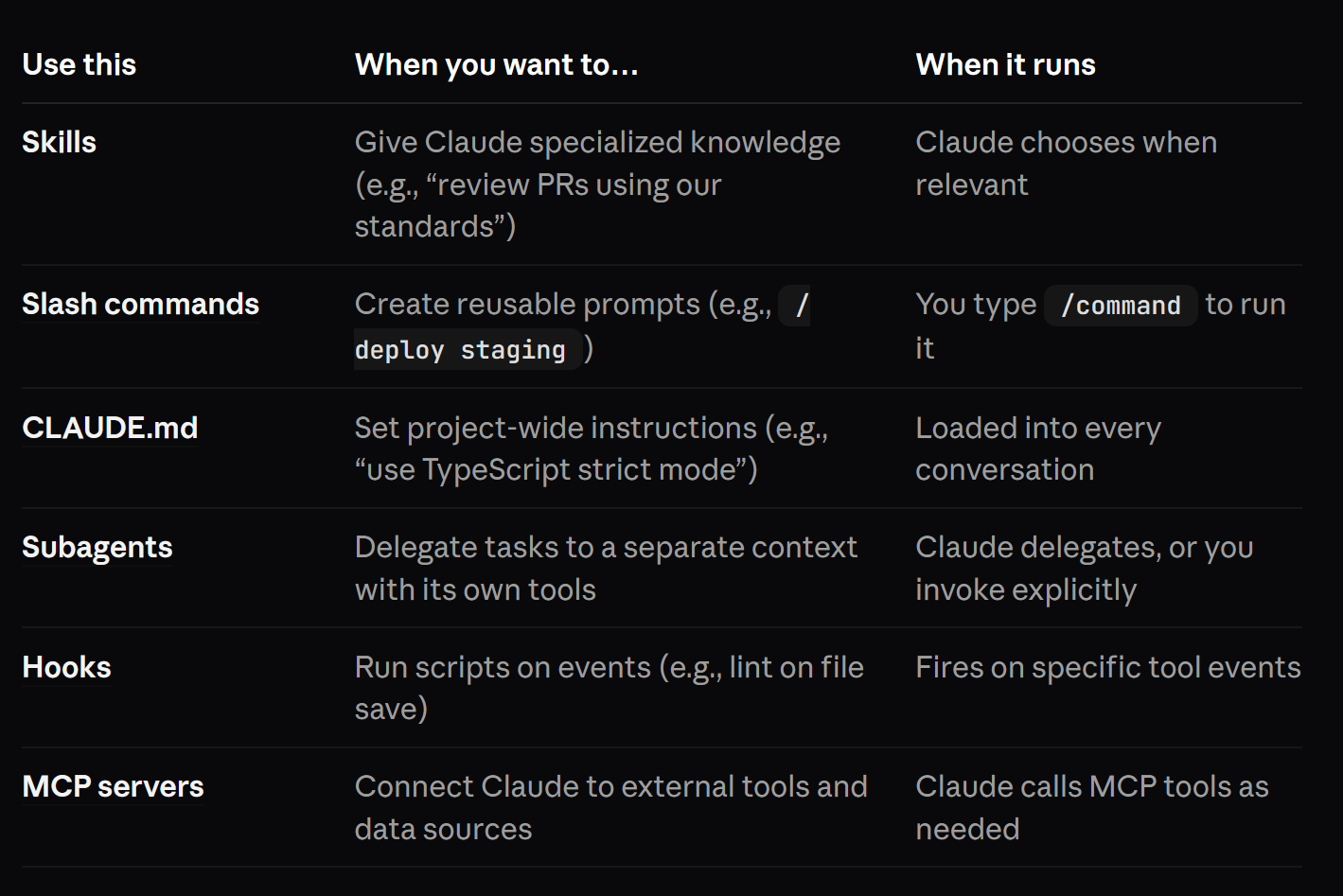
Each of these are extremely useful tools for slowly growing your AI use to work for you. Claude can help you create each one of these, so don’t fear that you’ll have to do them all yourself every time.
Anthropic has a good rule of thumb on when to use each one of these. Here are their recommendations:
- Using this tutorial, I use Claude Code for organizing and asking questions about my large collection of personal notes: https://www.theneuron.ai/explainer-articles/how-to-turn-claude-code-into-your-personal-ai-assistant [return]